License Backup/Restore Windows 8/8.1, Windows Server 2012/R2, Office 2013
I - Copy of license
1. Download Advanced Tokens Manager
2. Open Advanced Tokens Manager and click on the Windows icon.
The status will display the product installed on the device and information about
activation If the product key is displayed in the window, select the Activation Backup option and we have a ready copy of the system activation Windows 8.1
(If we have 2 products, Windows and Office the program makes a copy of both licenses)
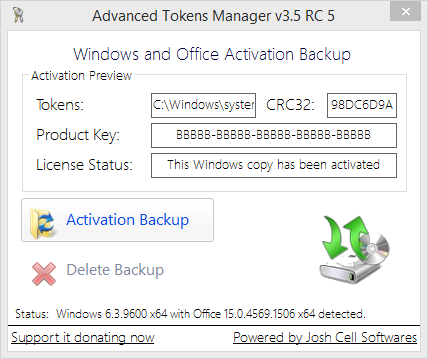
3. If the key does not load itself, as it did in my case, we need to enter it manually.
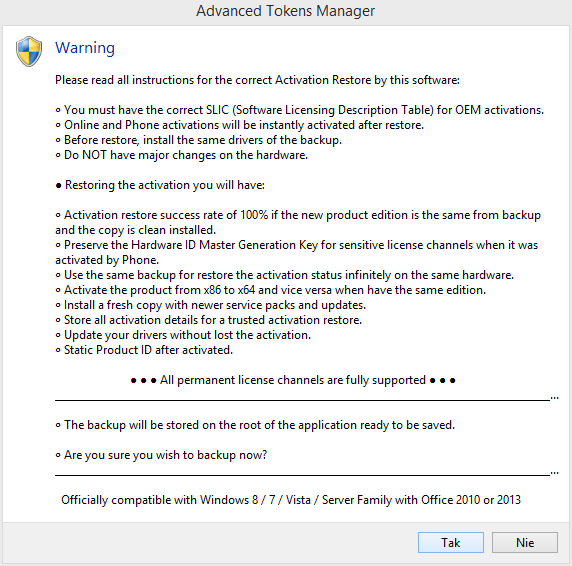
To do this, select the Activation Backup option and when the information window appears, confirm that you have read it.
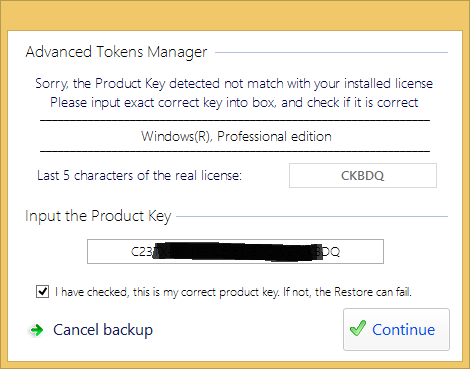
4. Enter the product key in the designated space. The last 5 characters will be displayed to help you find the correct key. Check the box to confirm that the entered key matches the one stored in the system and continue.
5. Changing Activation Backup to Activation Restore means the backup has been made correctly.
The program created a backup copy in the folder it was placed in. Remember to keep the license folder and
keep the program because after reinstalling the system it will be needed to restore the license.
II License Restoration
To restore the license after installing a fresh system, run the application and select the Activation Restore option.
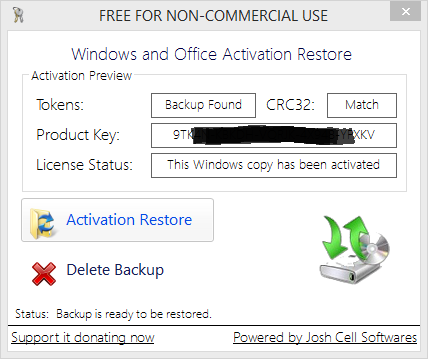
You will then be informed that the internet will be disconnected while restoring the license backup.
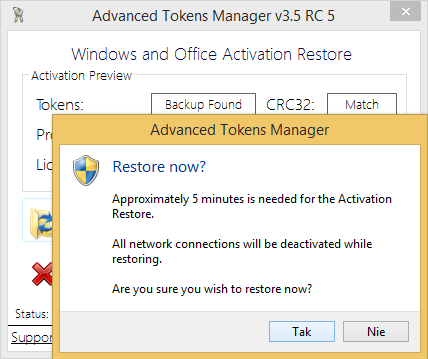
After about a minute or two, the license will be restored to our new system.